Most fabs have a screen on a wall somewhere showing tool status. Most of those screens are a desk dashboard stretched onto a television: small type, a sidebar nobody uses, colours that wash out under a projector, and a number in the corner that may be live or may be from this morning. Nobody can tell which from across the bay.
This post is about what a floor display has to get right, and how the Live view on FabConnect’s Dashboard does it. We wrote earlier about why a live board is one of the first things worth building on an equipment API; this is what it looks like when it is built.
What it shows
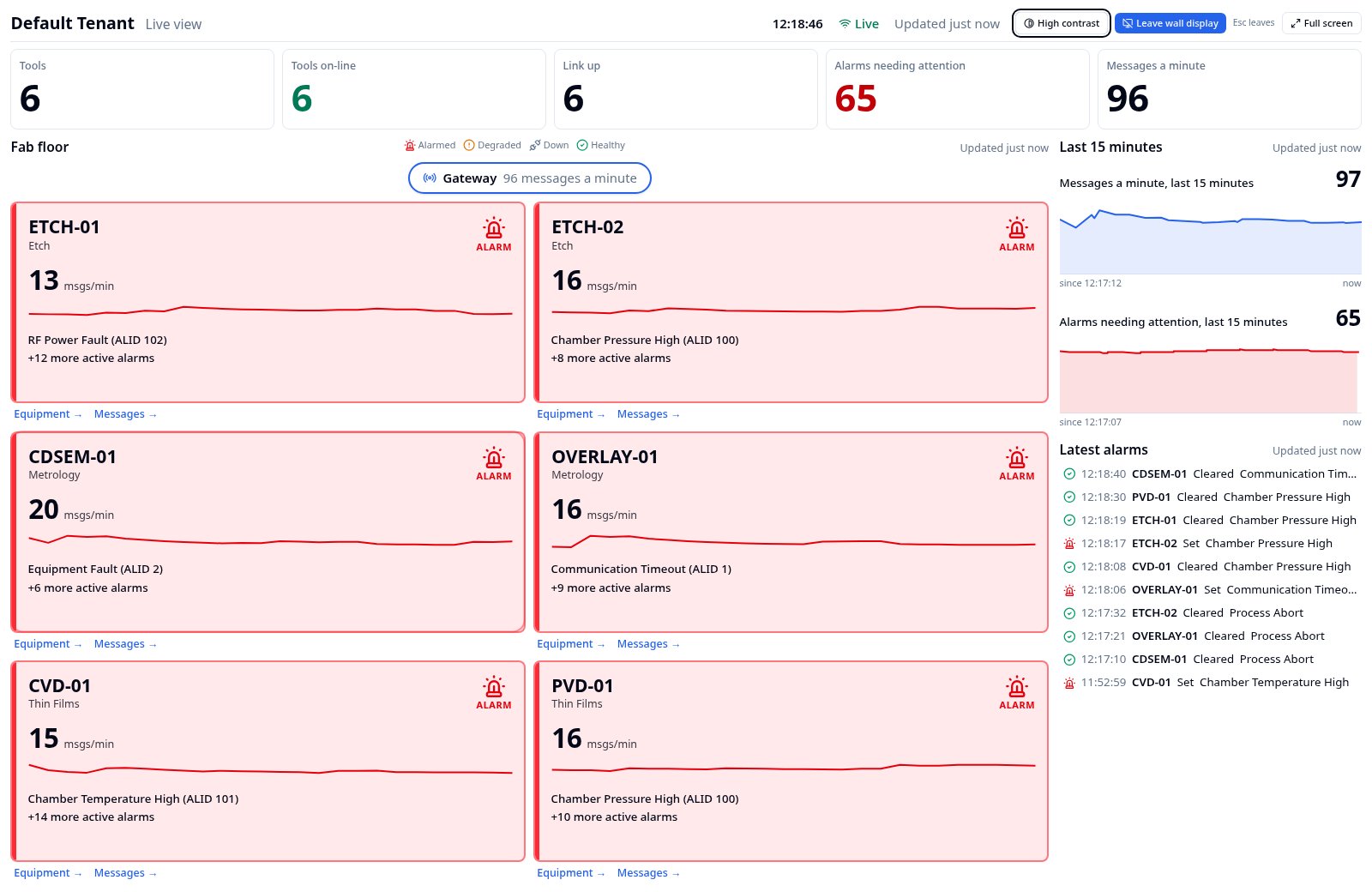
The Live view is a switch on the Dashboard. It shows five headline numbers: tools, tools on-line, link up, alarms needing attention and messages a minute. Below them are the tools by area, each in one of four states: alarmed, down, degraded or healthy. Beside them are the latest alarms, the tools needing attention, and a 15-minute series of messages and alarms. Message particles flow from each tool to the gateway at that tool’s message rate, and a ripple marks an alarm being set.
It is read-only. Clicking a tool opens its pages, its alarms if it has any, but nothing on the screen sends anything to a tool.
One layout does not fit every fleet
A screen built for eight tools is useless at two hundred, and one built for two hundred wastes a small line’s screen on empty space. The Live view picks its layout from the number of tools in view:
| Tools in view | Layout |
|---|---|
| Up to 12 | Large cards, with the tool’s name, state and message rate |
| 13 to 60 | Medium tiles |
| More than 60 | A dense grid, one cell per tool |
On a wall display the dense grid takes the largest cell size that fits the screen. A saved Dashboard view can carry its own areas and tools, so one screen can show one bay and the next screen another.
Wall, TV and projector
A “Wall display” button, or ?view=live&display=wall in the address, removes the console’s sidebar and header and leaves a title bar with the company name, a clock, the connection state and when the data was last updated. A TV’s browser can be bookmarked straight to that address, so nobody needs a keyboard to bring the screen back after a power cut. Type scales with the screen, and is meant to be read across a room on a 1080p, 1440p or 4K display.
Some practical details a wall needs and a desk does not:
- The pointer hides after three seconds without movement.
- The screen is kept awake where the browser supports it, so the display does not go to sleep at its power-saving timeout.
- A dropped session is said, not hidden. If the sign-in expires, the screen tries one token refresh and then says the session has ended, with a sign-in button that returns to the same wall address.
- Esc leaves the wall display and full screen.
Adding &contrast=high, or the High contrast button, switches to solid fills, heavy outlines and full-strength text, for projectors and screens in bright rooms.
Colour is not enough
Red and green are the two colours most often confused by people with colour-blindness, and they are the two colours most status boards depend on. A projector at the wrong white balance confuses them for everyone.
So every state on the Live view also has a shape. In the dense grid an alarmed tool carries a triangle, a down tool a cross, a degraded tool a diamond and a healthy tool a dot. Cards and tiles carry an icon and the state written as a word, and a tool that is down also has a dashed border. A screen photographed in black and white still says which tools need someone.
A number that says how old it is
The most dangerous thing a wall display can do is show old data as if it were current. A frozen browser tab looks exactly like a quiet fab.
Every number carries an “updated” stamp: updated just now, updated 12 s ago, 3 min ago. After 20 seconds without fresh data the stamp turns amber and bold. If the live connection drops, or tool states stop arriving, a banner says so in plain words. The point is that nobody should have to wonder whether the screen is telling the truth; it says when it might not be.
Click a number to see where it comes from
Someone will eventually ask why the screen says 41 tools on-line when they count 43 in the bay. The answer should be on the screen, not in a developer’s head.
Clicking any headline number, or focusing it and pressing Enter, opens a short note saying how it is counted and where it is read from: the rule, the API endpoint, and the live topic that updates it, or that it has none and is read every 5 seconds. “Link up”, for example, counts tools that are connected and selected, not merely connected, the distinction we described in “Connected” isn’t “talking”. “Alarms needing attention” leaves out alarms that are shelved or on a tool under maintenance, and says how many of those there are beside it. Where a message rate is known for only some tools, the note says “from X of Y tools”.
The 15-minute series is honest in the same way: it is built from the readings taken since the view was opened, so a screen that was opened five minutes ago shows five minutes.
Motion that can be turned off
The animation is there to draw an eye to a change: a number counting to its new value, a ripple when an alarm is set. For some people motion on a large screen is a distraction or worse. When the operating system or browser asks for reduced motion, the Live view respects it: particles, ripples, pulses and counting stop, and a change of state simply appears. The animation also pauses when the tab is hidden, and a wall display or a dense floor redraws at most 30 times a second.
Where it gets its data
Nothing new runs behind it. It reads what the rest of the console reads: the Fab Grid’s fleet status, the active alarms, and the console’s live WebSocket topics for equipment and alarms. If you have built your own board on the gateway’s API, the Live view is reading the same feeds yours does.
The honest boundary
The Live view is covered by the console’s automated tests, and its drawing was measured on a 500-tool floor with the processor deliberately slowed. Like the rest of FabConnect it has run only against simulated tools. It has not yet run on the wall of a production fab, and we have not tried it on every make of smart TV browser. If yours does not support keeping the screen awake, the display still works; it will simply follow the TV’s own power settings.